
Professional Flowcharting
Sample Flowcharts
This page shows some sample flowcharts that were drawn with the RFFlow software. For general information about RFFlow, go to the RFFlow Home page. 

These flowchart examples can be downloaded and edited. It is sometimes easier to modify an existing chart than to draw a new one.

If you haven't done so already, download the free trial version of RFFlow. Once it is installed, you can open the samples on this page directly in RFFlow by double-clicking the links to the right of each picture. From there you can zoom in, edit, and print the sample chart. (Users of Netscape Navigator 6 should right-click on the file and select Save Link As...)
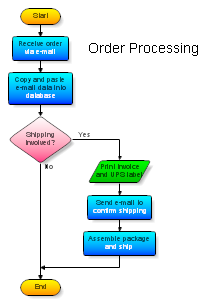
Order Processing Click to enlarge image

Download order_processing.flo (50 KB)

Each flowchart has one starting point and one or more ending points that are drawn with a rounded rectangle or oval. Steps, actions, or tasks are drawn with rectangles. It helps to use verbs in describing the steps. Decisions are drawn with diamonds with labels at the exits. The arrows show the order the steps are taken. This chart shows the basic steps in receiving payment and can be easily modified for your organization.

See the tutorials:


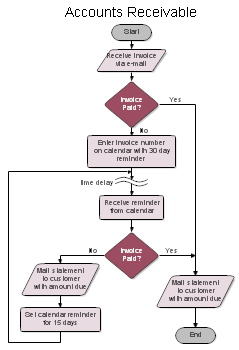
Accounts Receivable Click to enlarge image

Download accounts_receivable.flo (55 KB)

The amount of detail you show in a flowchart depends on what the chart will be used for. It is up to you to decide the detail needed. 

If a chart is getting too large, you should split it into sections.  In the top level chart, one rectangle may refer to another flowchart. This creates a hierarchy and makes it easier to draw a chart about one subject. 

See the tutorials:


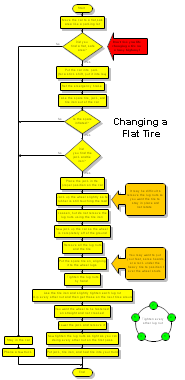
Changing a Flat Tire Click to enlarge image

Download flat_tire.flo (68 KB)

With RFFlow you can add descriptive text anywhere on your chart. You can place shapes and text anywhere you want. 

See the tutorials:


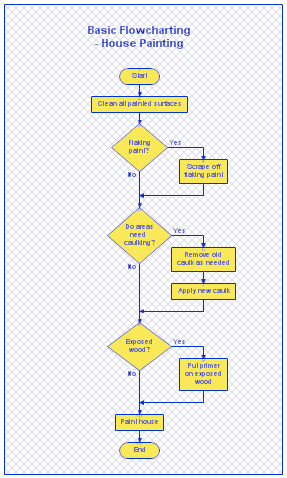
Basic Flowchart - House Painting Basic Flowchart - House Painting Click to enlarge image

Download basic_flowchart_house_painting.flo (7 KB)

Each flowchart has one starting point and one or more ending points that are drawn with a rounded rectangle or oval. Steps, actions, or tasks are drawn with rectangles. It helps to use verbs in describing the steps. Decisions are drawn with diamonds with labels at the exits. The arrows show the order the steps are taken. The shapes in the flowchart are often numbered to make it easier to refer to them. RFFlow allows you to automatically number shapes. Click on Tools, Number Shapes.

See the tutorials:

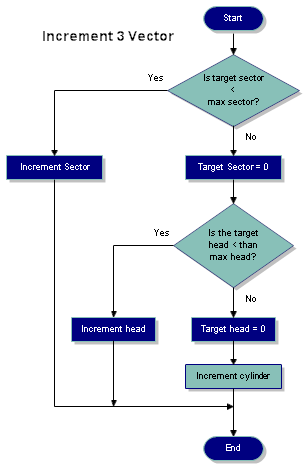
Basic Flowchart - Increment 3 Vector Basic Flowchart Click to enlarge image

Download basic_flowchart1.flo (7 KB)

This flowchart example uses one of the flowcharting color schemes. To find these, click the More Shapes button, Flowcharting, and Color Schemes in RFFlow.

See the tutorials:


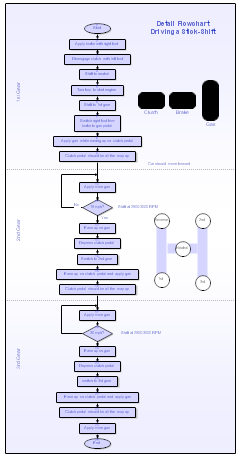
Detailed Flowchart - Driving a Stick Shift Detailed Flowchart Click to enlarge image

Download stick_shift_flowchart.flo (23 KB)

While basic flowcharts show only the major steps, detailed flowcharts include more information. The designer of a flowchart must decide how much detail is required.

Each flowchart has clear starting and ending points. The arrows show the direction of flow. Shapes can be numbered for easy reference. RFFlow has an automatic numbering feature.

Once a flowchart is drawn that accurately represents a process, then the process can be analyzed to eliminate inefficiencies.

See the tutorials:


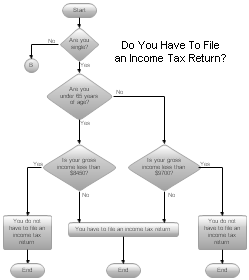
Do You Have to File an Income Tax Return? Click to enlarge image

Download how_to_draw_a_flowchart.flo (55KB)

This chart is used in the tutorial How to Draw a Flowchart.

See the tutorials:


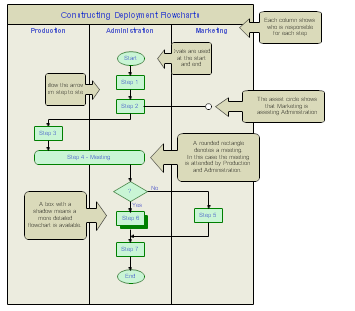
Deployment Flowchart Deployment Flowchart Click to enlarge image

Download deployment_flowchart.flo (15 KB)

Deployment flowcharts show the steps in a process and also show which person or group is involved in each step. This example shows instructions for drawing a deployment flowchart with the responsible groups listed across the top.

See the tutorials:


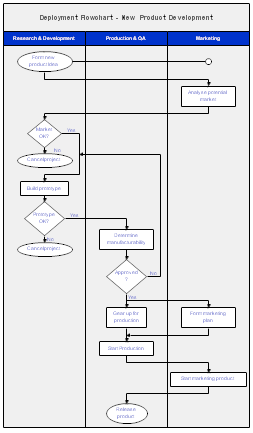
Deployment Flowchart - New Product Development Deployment Flowchart Click to enlarge image

Download product_deployment_flowchart.flo (17 KB)

Deployment flowcharts show the steps in a process and also show which group or person is responsible for each step. This deployment flowchart shows the steps needed to bring a new product to the marketplace. The tasks are listed in order and are placed in one of the three columns: Research & Development, Production & QA, or Marketing. 

Deployment flowcharts highlight places in a process where work moves from one group or person to another. This is often where the problems occur.

See the tutorials:


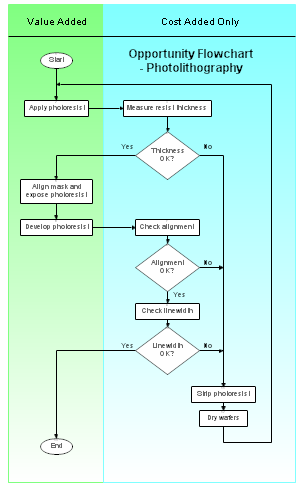
Opportunity Flowchart - Photolithography Opportunity Flowchart Click to enlarge image

Download photoresist_opportunity_flowchart.flo (15 KB)

Opportunity flowcharts show the steps in a process and also show whether each step adds value to a product or only adds cost. Value-added steps are shown in the left column. These are the steps taken when everything goes right. Cost-added steps are shown in the right column. These steps only occur when things go wrong. If there are no problems, then only the steps in the left column are taken.

Opportunity flowcharts allow you to see where a process can be improved.

See the tutorials:


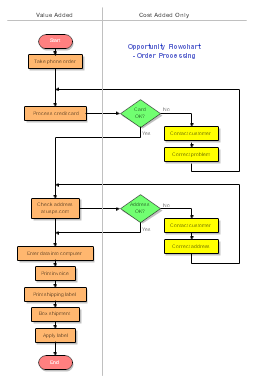
Opportunity Flowchart - Order Processing Opportunity Flowchart Click to enlarge image

Download order_processing_opportunity_flowchart.flo (16 KB)

This opportunity flowchart shows the steps involved in processing an order. When things go right, the steps in the left column are taken. When things go wrong, the steps in the right column are taken. 

Opportunity flowcharts allow you to see where a process can be improved.

See the tutorials:


Register | Documentation | Privacy and Security | Version Information | Free Additional Shapes | Software Resellers
RFF Electronics
PO Box 1244 Loveland CO 80539-1244 USA Phone 970 663 5767 Fax 970 669 4889 www.rff.com flow@rff.com
Copyright © 1996-2008 RFF Electronics. All rights reserved.