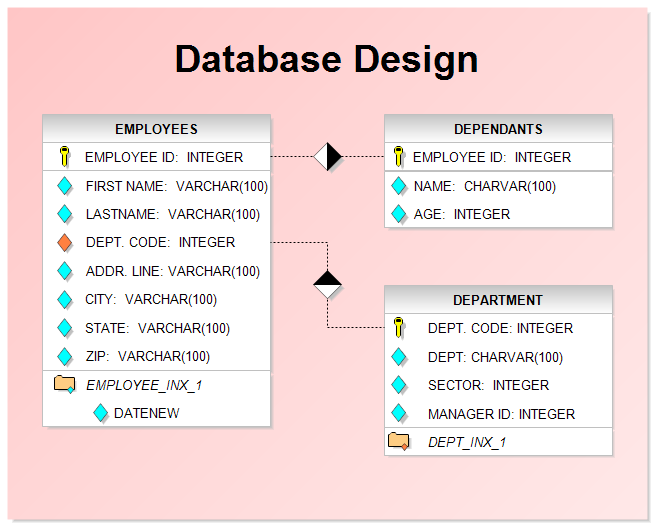
The database chart shown above was drawn with RFFlow using the
Database
Design Stencil. This database has three tables, Employees, Dependants, and
Department.
In the Employees table, the primary key is the Employee ID. The other fields
are the usual name, address, etc. Each employee may have several dependants,
so the Dependants table has a many to one relationship to the Employees table.
The Employee ID relates these two tables.
A database with multiple tables that are related is called a relational
database.
A department will hopefully have many employees so the Department table is
related to the Employee Table in a one to many relationship using the
Department Code. The Department Code is the primary key in the Department
Table. The Department Code is not a primary key in the Employees table so it
is referred to as a foreign key and labeled differently.
The chart above also shows some index fields. These are used if you regularly
sort data in tables by the same field. It speeds up searches.
This database chart uses a modern set of
symbols.

- Primary key

- Data

- Foreign key

- Index

- One to many
RFFlow also includes the traditional symbols used in drawing database
diagrams. If there are any symbols that we don't have, contact us and we can
add them in the next RFFlow upgrade.
First
download the
free trial version of RFFlow. It will allow you to open any chart and make
modifications.
Once RFFlow is installed, you can open the above chart in RFFlow by clicking
on
new_database.flo.
From there you can zoom in, edit, and print this sample chart. It is often
easier to modify an existing chart than to draw it from scratch.
To draw this chart without downloading it, run RFFlow and click on the
More
Shapes 
button. Scroll to the
Database Design stencil and click on it.
Then click the
Add
Stencil button.
Click on the gray shaded box in the Database Design stencil and type in the
title of the table. Then click on a white box and type in the names of the
fields, clicking the ENTER key on your keyboard to go down one line for each
field. The diamonds and folders are separate shapes that are added on top of
the text boxes. Lastly add the background color and size it around your chart.
To size a box, click on it and adjust the green handles. The title can be
added by clicking on the word "Text" in a stencil and making the
font larger.

 Loveland CO 80539-1244 USA