You may want to print this page of instructions.
Downloading the File
- Click on the underlined .flo file of the stencil you
wish to download.
- In the dialog box that is displayed, click Save or select Save
this file to disk and click OK.
- The file will be saved in your download folder.
- Once you have the file on your hard drive, you can add this stencil to any
chart.
Adding a Stencil to a Chart
- Open a file in RFFlow or start a new chart.
- Click on the More Shapes button
 .
.
- Click on the box with the plus sign
 to expand this category.
- Click on
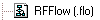
- Find the file you downloaded and click the Open button.
- The file may contain several stencils. Select the stencil you want and
click OK.
- In the Stencils and Shapes dialog box, click the Add Stencil button
and then the Close button.
Making the Current Stencils the Default Stencils
- To make the downloaded stencils the default stencils for new charts, click
the word Stencils in the main menu of RFFlow.
- Click the item Make the Current Stencils the Default Stencils for New
Charts.
Now when you run RFFlow or start a new chart, these stencils will be
displayed.
Return to
Free Additional Shapes
If you have any questions or need assistance, call us at 970-663-5767 or send
email to
help@rff.com.

 Loveland CO 80539-1244 USA